The main window
Use the main window to answer three questions before changing files: what is loaded, what is selected, and what still needs saving. The tag panel and the file list show the same files from different angles; neither is a permanent backup of the metadata on disk.
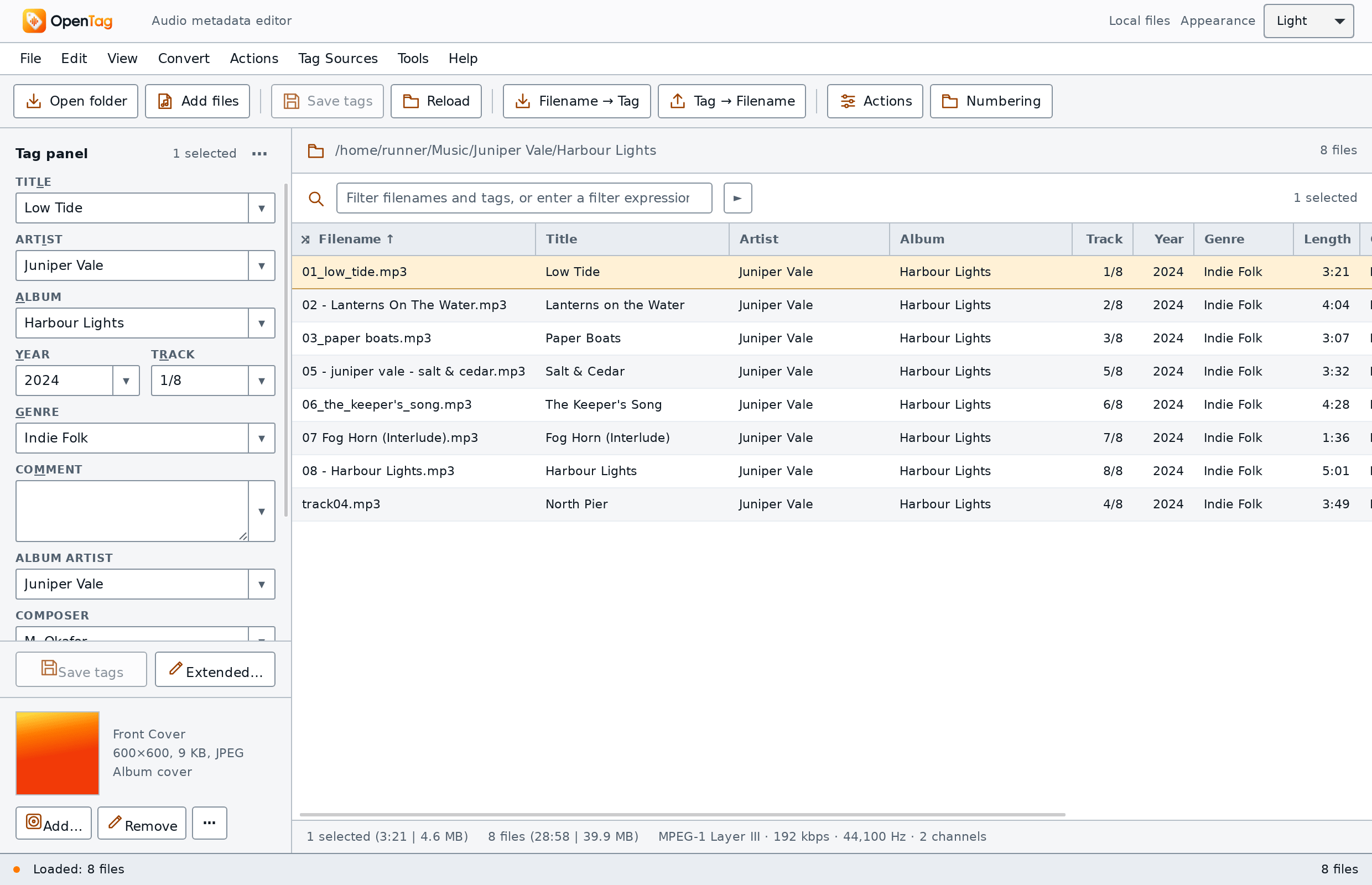
Find each part
| Area | What to look for | What it means for your work |
|---|---|---|
| Menu bar | File, Edit, View, Convert, Actions, Tag Sources, Tools, Help | Find named commands even when a toolbar button is hidden |
| Toolbars | Main buttons and optional custom buttons | Shortcuts to operations; a disabled icon can have a reason |
| Location strip | Current location and loaded-file count | How many entries are in the workspace, including rows hidden by a filter |
| Tag panel | Fields such as Title, Artist, Album, plus cover controls | Values for the selected files; differing fields can show < keep > |
| File list | One row per loaded file or expanded chapter | Select targets, inspect columns, sort and edit supported cells |
| Filter | Text box and visible/selected counts | Restrict the visible rows without assuming hidden selections disappear |
| Selection summary below the list | Selected duration/size, listed totals and single-file technical details | Compare the intended selection with the visible list; filtered totals describe listed files |
| Status/footer | Operation message, progress, unsaved-file count | Inspect the result and whether pending edits remain |
| File-error area | Individual paths, messages and Dismiss | Investigate each failed file; dismissing only clears the displayed errors |
The title area's Local files, Provider documents or Browser preview mode identifies the access environment. A familiar-looking window does not make every command available in every mode.
Loaded, visible, selected and unsaved are different
A filter changes visibility. Selection determines targets for selected-file commands. Pending edits record changes still waiting to be saved. These are independent states: a hidden row can remain selected, and an unselected row can still have pending edits.
The count beside the filter illustrates this distinction:
| Loaded rows | Visible rows | Selected rows | Filter-area count text | While filtering |
|---|---|---|---|---|
8 |
8 |
1 |
1 selected |
Filtering… · 1 selected |
8 |
3 |
2 |
3 visible · 2 selected |
Filtering… · 2 selected |
The second line does not tell you which two rows are selected. One could be hidden. Clear the filter and inspect/reselect the intended files before a batch write. The unsaved-file count covers the loaded workspace; saving one selection does not necessarily clear all pending edits.
While a filter is being evaluated, the count shows Filtering… and the selected count; the visible count returns after evaluation. An invalid filter is different from a valid query with no matches. Use the filter guide for expressions and error handling. F3 hides a shown filter and clears its applied restriction; showing it again restores the remembered text. It does not delete any audio files.
Read and edit a selection
Select one row to inspect its fields. Select several only when a change is
intended for all of them. A shared value appears in the tag panel; differing
values can show < keep >. Leaving that state alone preserves the different
values. Replacing it assigns the new value across the selection, and clearing
a field requests removal.
A column can show a stored field, a calculated expression or a technical property. Seeing text in a column does not mean that cell is writable. Filename/path editing changes a filesystem name, while Title changes metadata. Read The file list before using F2 or custom columns. Use Extended tags to inspect fields that the current panel does not display.
For an ordinary metadata edit, look for the pending marker and unsaved files, then use File → Save tags on the intended selection. Actions, applied converters and direct artwork commands have different write timing. Editing, saving and undo explains those boundaries, partial success, cancellation and session history.
Arrange a wide desktop window
Use View → Show tag panel if the panel was hidden (Hide tag panel is the inverse command). Its shortcut is Ctrl+Q: Control on every platform, including macOS. View → Tag panel position offers Left, Right, Top, Bottom and Floating on a wide layout. Resize its border or move the floating panel to keep the fields reachable.
View → Filter position places the filter above the list or on either side of the toolbar. View → Toolbars controls the main/custom toolbars. Use Columns and Tag-panel customization for detailed field layouts; rearranging the workspace does not rewrite tags.
If the view becomes confusing, show the panel, choose a docked position such as Left, show the filter with F3 if hidden, and clear its text before checking the loaded list. Do not load an old configuration merely to find a hidden panel: that replaces broader settings and reloads the window.
Use a narrow window
At compact widths, Files and Tags switch between the list and the tag panel. Select a file before opening its tags; selecting a row can move to the Tags pane. Compact layouts show the first three visible columns and keep the filter with the list. Widen a desktop window when a full column comparison or docking controls are needed.
This responsive layout is separate from mobile filesystem support. A phone preview can display fields while access or save-back is restricted. Read the mode and source-access messages rather than inferring capabilities from the layout alone.
Diagnose a disabled command or a failed operation
First check whether an operation is still running, whether the right files are selected, and whether the row is an ordinary file, chapter row or provider-backed document. Hover or focus a disabled control when possible to read its reason. A temporary Wait for the current operation reason is different from an unsupported source or a read-only file.
After an operation, inspect the status and each file error. A success for one file does not prove the rest were written. Dismiss removes the error messages from view; it does not retry a write or repair the file. Keep the exact message and test a corrected operation on copied files before returning to a large batch.
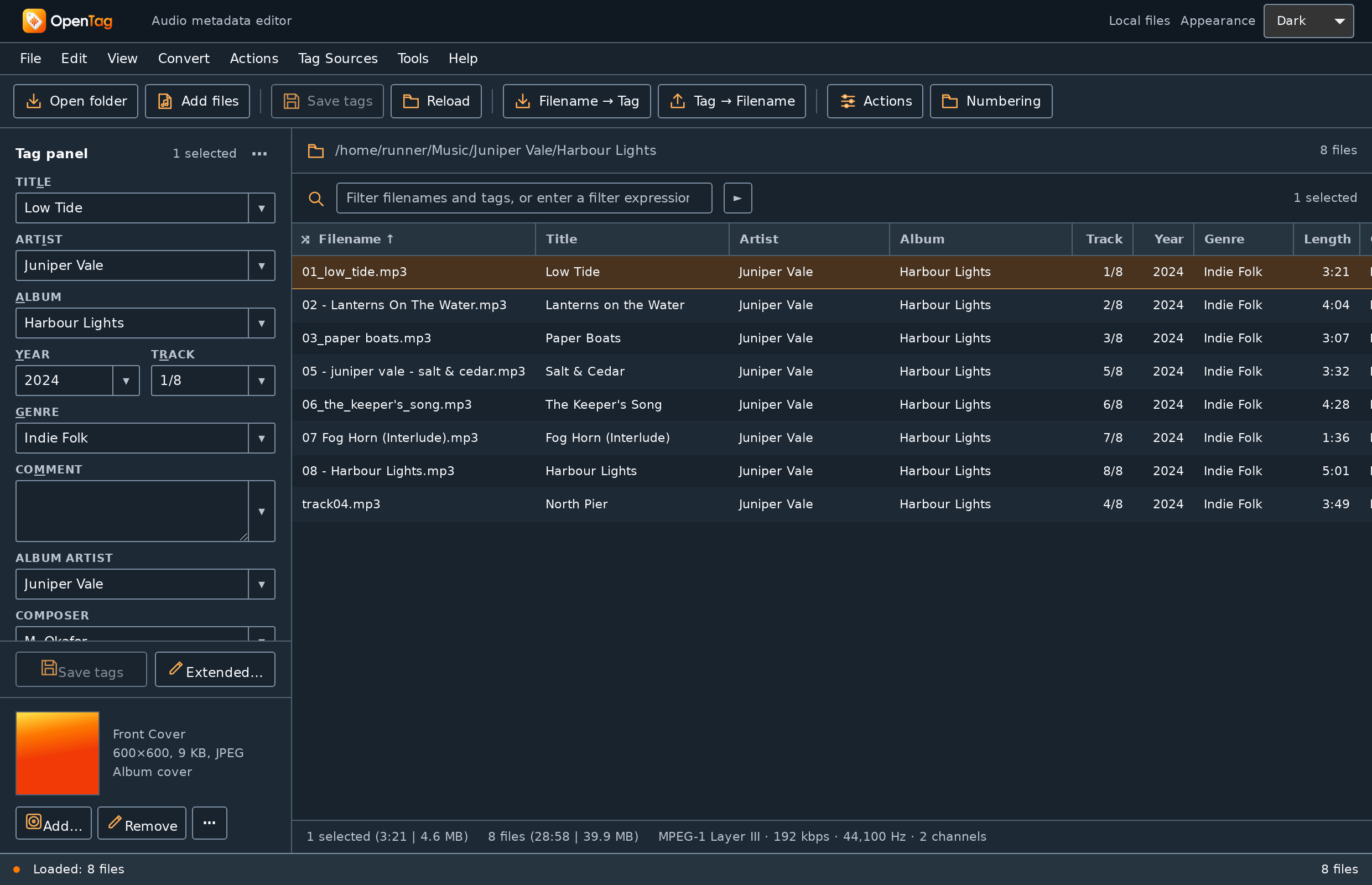
For appearance, use the title-area System, Light or Dark choice. Changing appearance does not change audio or metadata. Keep a configuration backup before broader customization experiments; installation and updates explains what that JSON bundle includes.